
This started at work, not in a job search.
Our QA team, dev team, and design team were all running into the same thing. Every time someone needed to test a flow, review a design, or create an account for a demo, they had to stop and fill out a form. Name, email, phone, city, state, ZIP. Fields that had nothing to do with what they were actually trying to test. The form was not the task. The form was in the way of the task.
When you are a QA engineer trying to validate a checkout flow, you do not care about the address field. You care about what happens after you submit. When you are a designer reviewing an onboarding experience, you do not want to spend four minutes typing placeholder information just to see the next screen. When a developer is debugging a form submission, they need to get past the form, not through it.
That friction adds up. Multiply it by every team member, every test run, every design review, and you are losing a meaningful amount of time to something that has nothing to do with the actual work.
So I built an internal tool at MyRegistry to fix it. A simple autofill that stored a set of test credentials and filled any form in one click. The teams could get past the friction and focus on what they were there to do.
That tool worked. And it taught me something.
The thinking behind the tool matters more than the tool itself
What I want to talk about here is not the extension specifically. It is the process of identifying a workflow problem clearly enough to build something that solves it.
This is something I think about a lot as a designer. Most workflow problems do not get solved because nobody stops to name them precisely. The friction is there, people work around it, and over time the workaround becomes the norm. Nobody questions it because it has always been that way.
The QA team had a workaround. They kept a notes file with fake test data they would copy and paste. The design team had a workaround. Some people had a throwaway email they used for every demo account. The dev team had their own version of the same thing.
Three teams, three workarounds, same underlying problem.
When I saw that pattern, I did not think about the form. I thought about why three different groups of people had independently invented their own solution to the same friction. That is usually a signal that the friction is real, it is consistent, and nobody has addressed it at the root.
That is the question worth asking. Not “how do we fill this form faster” but “why are we filling this form at all when the form is not the point.”
From internal tool to personal tool
Fast forward a few months. I started my own job search. And there it was again.
Name. Email. Phone. LinkedIn. Portfolio. City. State. ZIP code. Over and over across every application.
The context was completely different. But the problem was identical. Repetitive data entry blocking access to the actual task, which in this case was getting through the application, not getting stuck in the form.
Because I had already thought through this problem once, I knew exactly what I needed. I had a mental model for it. I knew the edge cases, the field detection issues, the dropdown problem with state fields, the fact that React and Vue apps handle input values differently than plain HTML forms. I had learned all of that building the internal version.
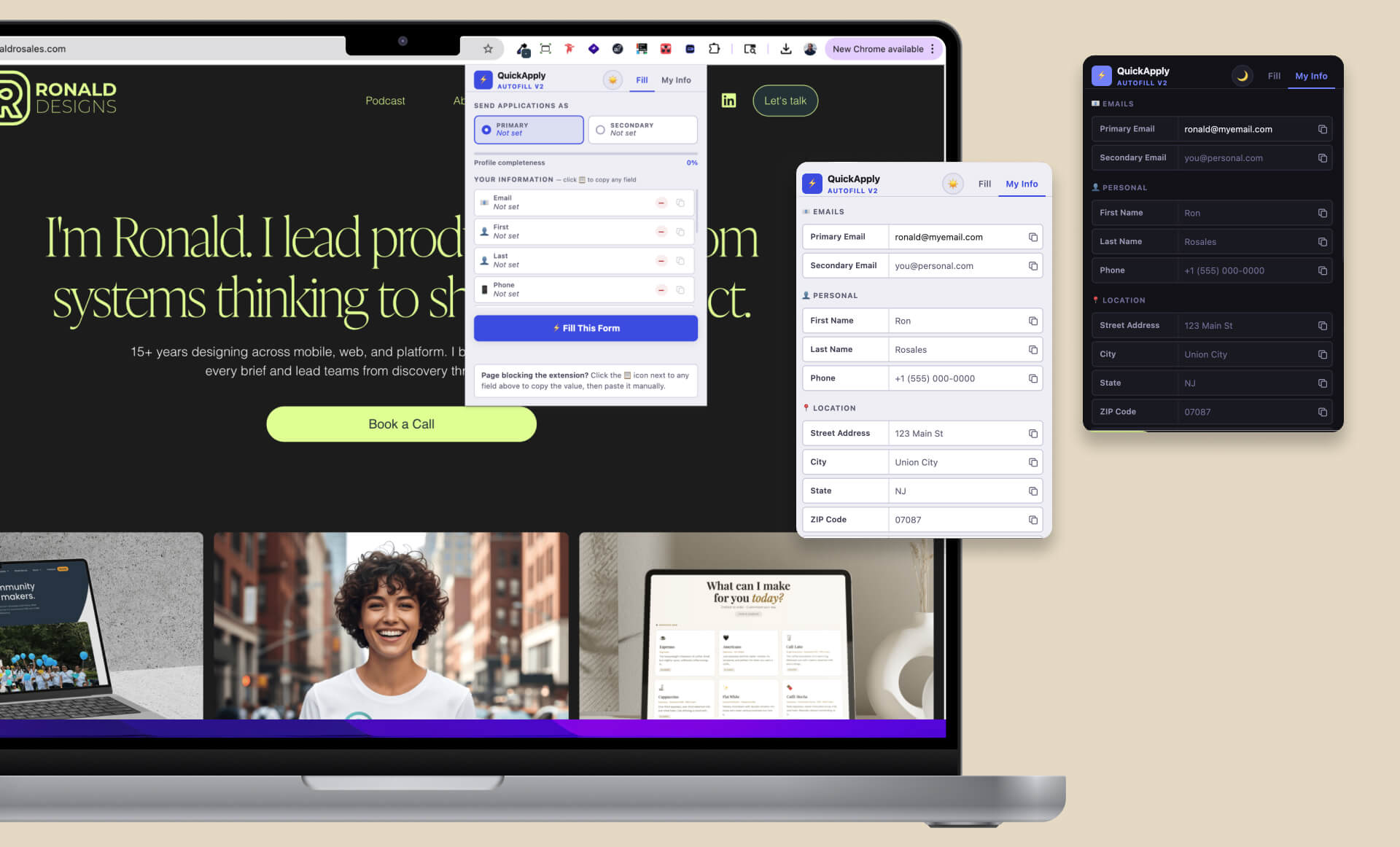
So I built QuickApply in an afternoon. A Chrome extension that stores your information locally and fills any job application form in one click.
But the extension is not the point of this post. The point is that the thinking transferred. One problem, solved clearly, taught me enough to solve the same problem in a completely different context in a fraction of the time.
What the tool actually does
For context, here is how QuickApply works.
You open the extension and save your information once. Two email addresses so you can toggle between a primary and secondary depending on what you need. Your name, phone, location, LinkedIn, portfolio, salary expectations. Any custom fields you want to add on top of that.
When you land on a form, you click Fill. The extension scans every input and select element on the page and builds a fingerprint for each one, pulling from the field name, ID, placeholder text, aria-label, and visible label text. It matches those fingerprints against known patterns for each type of information and fills the matching fields.
It handles state dropdowns specifically, which most autofill tools miss, by including a full US state abbreviation map. If you store NJ and the dropdown says New Jersey, it still matches.
It also handles React, Vue, and Angular apps correctly. Frameworks that use controlled inputs ignore a plain value assignment. The extension uses the native input value setter and fires the right events so the framework registers the change.
For sites that block extensions entirely, every field has a copy button. One click copies the value to your clipboard so you can paste manually.
Everything stays local. No account, no server, no data leaving your browser.
What I caught that needed fixing
I want to be specific about this because it is part of the workflow I am documenting.
The original contrast on the design failed accessibility standards. Label text was sitting at around 3.3 to 1 against the background. I ran the numbers across every color in both light and dark mode, identified the failing values, and specified the corrected ones. Everything now passes WCAG AA at a minimum of 4.5 to 1.
The city field was not filling. The field detection pattern used regex anchors that required the entire fingerprint string to equal the word “city” exactly. Since the fingerprint joins ten different attributes, that match would never happen. I caught it, understood why it was failing, and corrected the pattern.
The state dropdown was not filling at all because the query did not include select elements, only text inputs. I flagged it and added the state abbreviation map at the same time.
These are the kinds of things that require you to understand what you are looking at. The tool produced something. I reviewed it with enough context to know what was wrong and why. That combination is what makes AI useful in a real workflow rather than just impressive in a demo.
The actual workflow
Planning before prompting. That is the part that most people skip.
I did not start by asking AI to build me a Chrome extension. I started by writing out the problem clearly. What the friction was. What success looked like. What edge cases I already knew about from the internal tool. What I did not want it to do.
That took about 20 minutes. And it is what made the difference between getting something useful back on the first pass versus going back and forth indefinitely.
The AI does not know your problem. It knows how to respond to how clearly you describe it. If your description is vague, the output is vague. If your description is precise, you get something closer to what you actually need on the first try.
From that brief to a working, packaged extension was under two hours. That includes two rounds of design fixes, the accessibility audit, the field detection bugs, and both light and dark mode. That is not a flex about how fast AI generates code. It is about what happens when you pair clear problem definition with tools that can move fast.
Why I am documenting this
This post is the first in a series where I write about how I actually use AI in my workflow. Not in theory. Not as a general explainer. Specific tools I built, specific problems they solve, and the thinking behind each one.
Next is a markdown editor I built for how I write. After that, an extension menu that brings several of these tools together in one place.
The throughline is the same across all of them. AI does not replace the thinking. It amplifies it. If you can identify a problem clearly and describe it precisely, you can build things that used to take weeks in an afternoon. But the clarity has to come from you.
That is what I am trying to show.
If you want to follow along, I post on LinkedIn and will link each piece there. And if you want QuickApply, drop a comment on the LinkedIn post and I will send you the link.
Download QuickApply
You can download the extension below. Instructions for how to install it in Chrome are included in the README file inside the zip.